
Software Updates
IntelliBlocks is versioned using the following form: Major.Minor.Revision.Build
You can configure how you want IntelliBlocks to self-update when a new version is available.
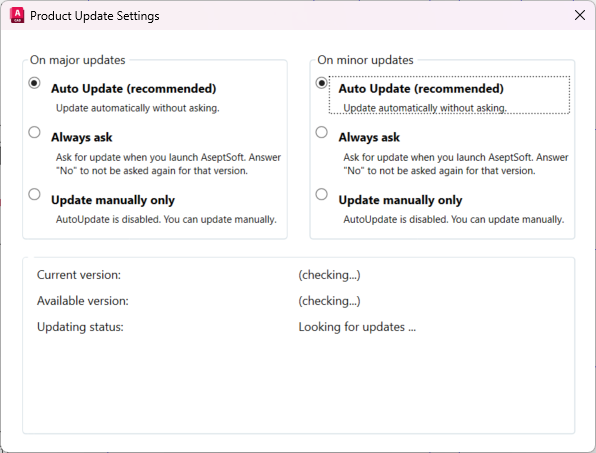
The “On major updates” setting will affect updates to any newer Major or Minor release. For example if you have locally IntelliBlocks 1.1.1.1, and we find a newer release 2.1.1.1 or 1.2.1.1, the ‘On major updates’ setting will be followed.
The “On minor updates” will affect updates to any newer Revision or Build release. For example if you have locally IntelliBlocks 1.1.1.1, and we find a newer release 1.1.2.1 or 1.1.1.2, the 'On minor updates’ will be followed.
The 3 possible settings are:
Auto Update will automatically update IntelliBlocks upon a newer relevant version.
Always ask will prompt you a message box to ask you to update when a newer relevant version is found. If you answer ‘Yes’ to that message, IntelliBlocks will be updated. If you answer “Cancel” to that message, the update will not happen, and you will be asked again the next time you launch that Host platform. If you answer ‘No’ to that message, the update will be aborted, and you will only be asked again when a newer version found. For that version you will not be asked again.
Update manually only will not update IntelliBlocks upon a newer relevant version. To update in this case you will need to have the window on top open, and after IntelliBlocks will check the Current version and the Available version, it will display a button next to ‘Updating status’ to manually update.

On specific systems AutoCAD will not allow the installer to update specific files at runtime. If this is the case, then switch to Always ask to get notified about updates. When you receive a notification, reject it, close AutoCAD, and run the installation kit to automatically update to the latest version. Then open AutoCAD again